

Key Takeaways
- Router placement is the single biggest factor in home Wi-Fi coverage and signal strength.
- Switching to a less congested Wi-Fi channel can noticeably reduce interference from neighbors.
- Keeping your router's firmware updated improves both performance and security.
- Rebooting your router regularly can resolve lingering slowdowns without any technical expertise.
- If signal problems persist in specific rooms, hardware solutions like mesh networks may be needed.
What you will need
Why Wi-Fi Performance Degrades Over Time
Home Wi-Fi rarely fails suddenly - it degrades gradually, and often for reasons that have nothing to do with your internet plan's speed. Neighboring networks grow denser, firmware goes stale, and routers get relocated during renovations or furniture rearrangements. Understanding the root causes makes the fixes far more intuitive.
The two most common culprits are physical placement and radio frequency interference. Walls, floors, appliances, and even human bodies absorb and scatter wireless signals. Meanwhile, the 2.4 GHz band used by most legacy devices is shared with microwave ovens, baby monitors, and every neighbor's router within range - all competing for the same limited spectrum. If you want a grounded overview of how home networks work before diving into settings, see our beginner's guide to home networking first.
The steps below address these issues systematically. Most take under ten minutes and require nothing more than a web browser and your router's admin credentials.
What you will need
What You'll Need
Before making any changes, gather the items below. Your router's admin credentials are almost always printed on a label on the underside or back of the device. If they've been changed and you don't know the current credentials, a factory reset is the only recovery option - but avoid that unless necessary.
Web browser
Used to access your router's admin panel and change settings.
Wi-Fi analyzer app
Scans nearby networks to identify the least congested Wi-Fi channel.
Ethernet cable
Provides a stable wired connection when testing router admin access or bypassing Wi-Fi for speed tests.
Step-by-Step: Improving Your Signal
Work through these steps in order. Repositioning and rebooting the router (steps 1 and 2) resolve the majority of common complaints and require no admin access at all. The settings-based steps that follow build on that foundation.
Reposition your router for maximum coverage
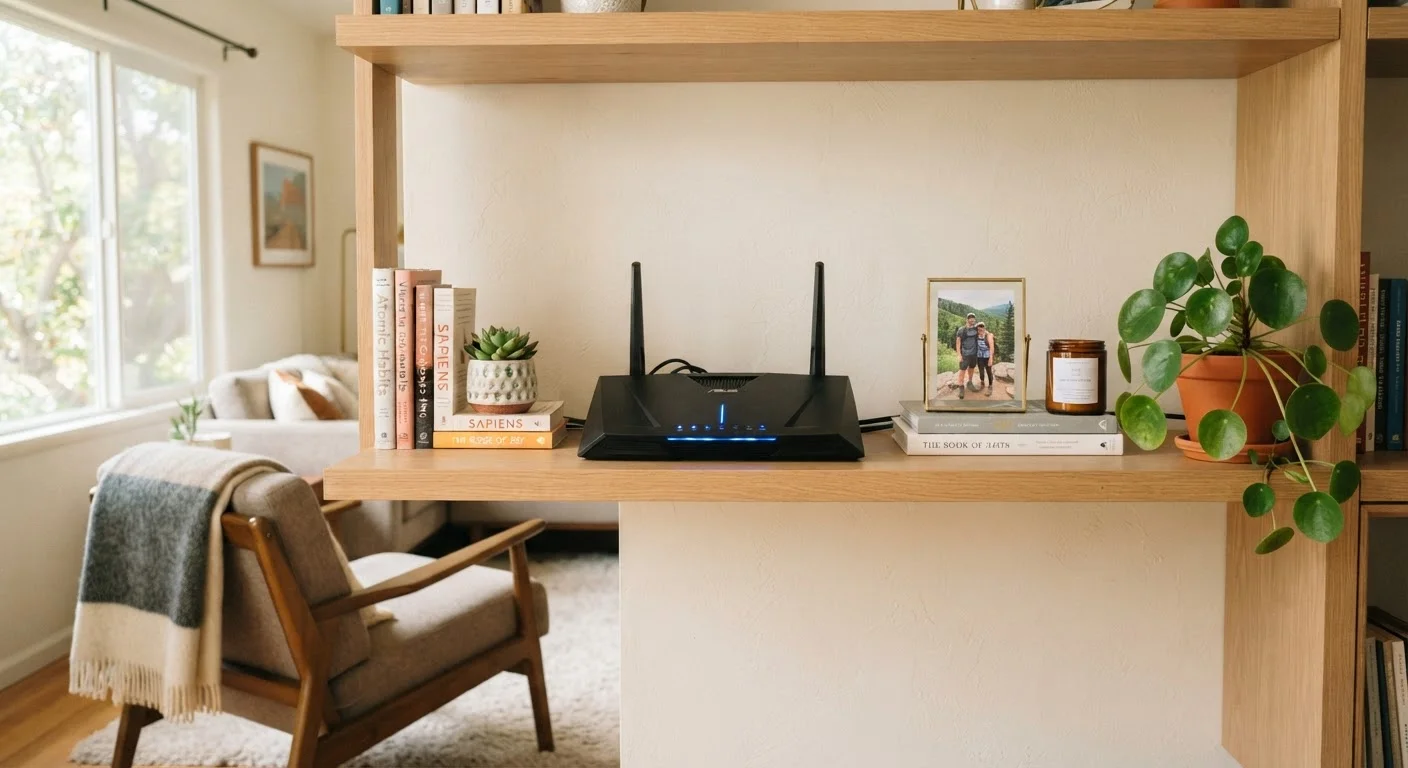
Place your router in a central, elevated location - ideally a shelf or table in the middle of your home rather than tucked in a corner or closet. Wi-Fi signals radiate outward in all directions, so a central position gives every room a more equal share of coverage.
Keep the router away from thick concrete or brick walls, large metal appliances, and microwave ovens, which absorb or reflect wireless signals. If your router has external antennas, orient them vertically for the broadest horizontal coverage across a single floor.
Reboot your router
Power-cycling your router clears temporary memory, refreshes its connection to your ISP, and can resolve slowdowns that accumulate over days or weeks of continuous operation. Unplug the power cable, wait 30 seconds, then plug it back in. Allow up to two minutes for the router to fully restart before testing your connection.
Consider setting a monthly reminder to do this - it takes under five minutes and costs nothing.
Switch to a less congested Wi-Fi channel
Wi-Fi operates on specific radio channels within the 2.4 GHz and 5 GHz frequency bands. In densely populated areas, many routers default to the same channel, creating interference that slows everyone down. Log into your router's admin panel, navigate to the wireless settings, and change the channel manually.
For the 2.4 GHz band, channels 1, 6, and 11 are non-overlapping - stick to one of these. The 5 GHz band offers many more non-overlapping channels and generally experiences less congestion. Use a Wi-Fi analyzer app to see what your neighbors are using before choosing.
Update your router's firmware
Log into your router's admin panel and look for a Firmware or Software Update option, usually under an Advanced or Administration section. If automatic updates are available, enable them. If not, download the latest firmware from the manufacturer's support website using your router's model number, then upload it through the admin panel.
Firmware updates frequently include performance improvements and bug fixes alongside security patches - treating this as a routine maintenance task pays dividends in both areas.
Enable Quality of Service (QoS) settings
Quality of Service (QoS) is a feature available on many modern routers that lets you prioritize certain types of traffic - such as video calls or streaming - over lower-priority activity like background app updates. Look for QoS under Advanced or Traffic Management in your admin panel.
You typically set priorities by device or by application type. Prioritizing your work laptop or streaming device can prevent one heavy user from degrading the experience for everyone else on the network.
Reduce interference from other devices
Cordless phones, baby monitors, and Bluetooth devices all operate on the 2.4 GHz band and can interfere with your Wi-Fi signal. Where possible, move these devices away from your router. Switching your Wi-Fi to the 5 GHz band - or connecting interference-prone devices to 2.4 GHz while keeping high-priority devices on 5 GHz - can also help.
If your router supports dual-band or tri-band operation, you can manually assign devices to the appropriate band through the admin panel or via a separate network name (SSID) for each band.
Use a Wi-Fi Analyzer App
Free apps like Wi-Fi Analyzer (Android) or similar tools on other platforms let you see which channels nearby networks are using. This takes the guesswork out of channel selection and helps you find the least congested option in seconds.
When These Steps Aren't Enough
If you've worked through all six steps and still experience dead zones - rooms where the signal simply doesn't reach - the issue is likely physical range rather than configuration. No software change can overcome the laws of physics when a router is too far from a device.
In those cases, hardware solutions become relevant. Our guide to mesh networks, extenders, and access points covers the options available without requiring a full equipment overhaul. It's also worth reviewing common home internet misconceptions - sometimes what feels like a Wi-Fi problem is actually a plan or modem issue in disguise.
Don't Skip Firmware Updates
Outdated router firmware can introduce security vulnerabilities and degrade performance over time. Most modern routers offer automatic firmware updates in their admin settings - enable this if available. If your router requires manual updates, check the manufacturer's support page periodically. This single habit covers both performance and network security in one step.
Finally, don't overlook network security as part of your overall router maintenance. Security habits that actually matter - like updating default passwords and auditing connected devices - are worth building into the same routine as the performance steps above.